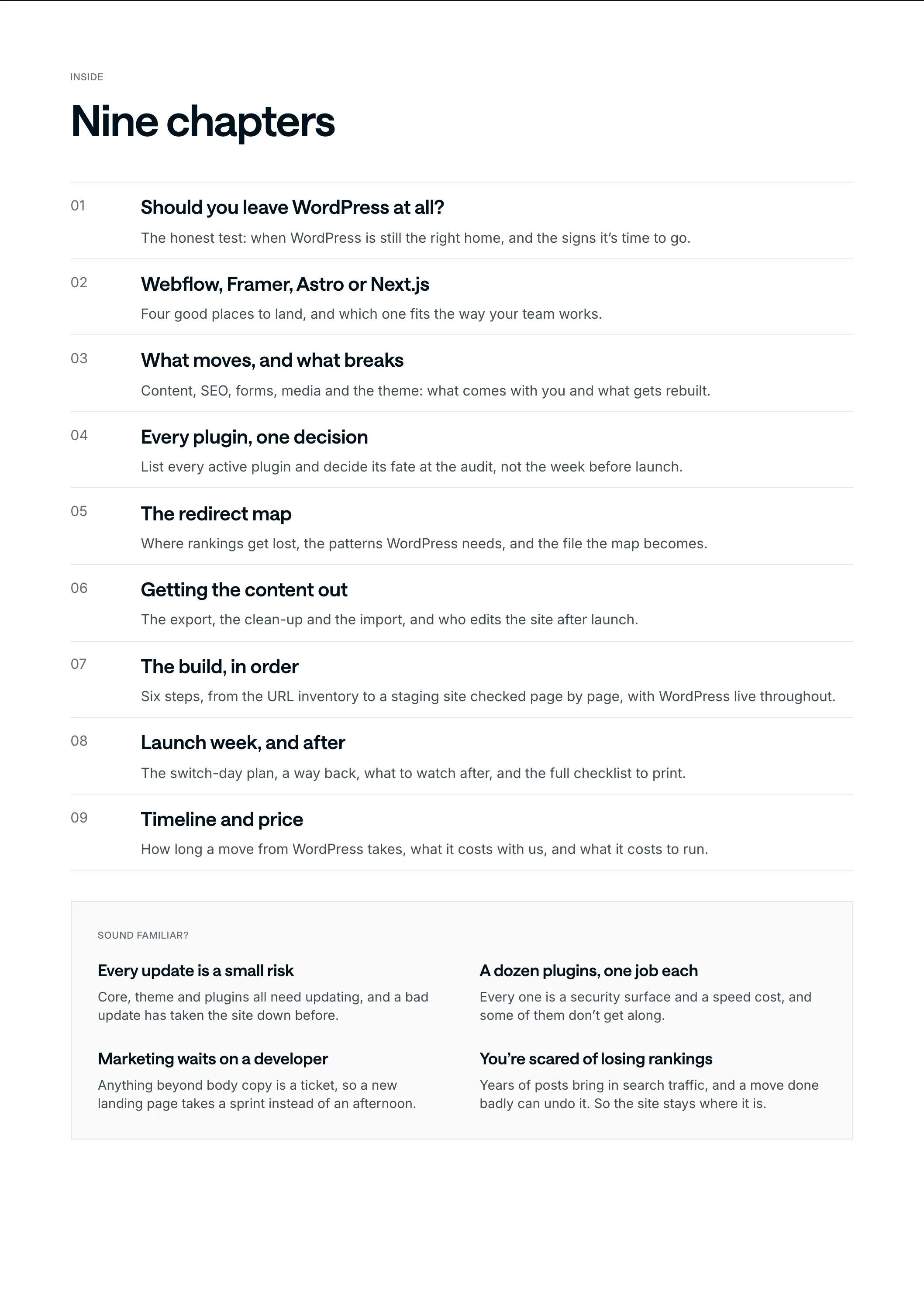
Leave WordPress without losing a URL
By Adrian Kuleszo, Co-founder, DesignMe. Updated 12 November 2026.
Download the PDF (16 pages)Chapter 01
Should you leave WordPress at all?
Not always. WordPress runs a huge part of the web for good reasons, and for some sites it’s still the right home. Here’s the test we use.
Is the site in your way?
Not really
Stay on WordPress
A shop, memberships or a big editorial team living in wp-admin
Yes
Move
Plugin upkeep, slow pages, every layout change a developer job
If none of the signs below apply, stay
Stay on WordPress if
- WooCommerce or a membership plugin is the core of the business. Rebuilding that elsewhere is a bigger project than a website migration.
- You have tens of thousands of posts and a large editorial team in wp-admin every day.
- The site is fine and fast, and the real problem is the design. A redesign on WordPress may be enough.
- You depend on a plugin with no equivalent anywhere else.
Move if
- Anything beyond body copy needs a developer, so marketing can’t ship a landing page on its own.
- The site runs a dozen plugins that each need updating, some of them conflict, and a bad update has broken it before.
- Pages are slow because of a heavy theme and stacked plugins, and nobody has time to manage it.
- The page builder decides what the design can look like, and the site is a big part of your brand.
- You want content in a structured shape that can feed the site, docs, a newsletter and AI tools.
If none of these apply, stay. Seriously.
Chapter 02
Webflow, Framer, Astro or Next.js
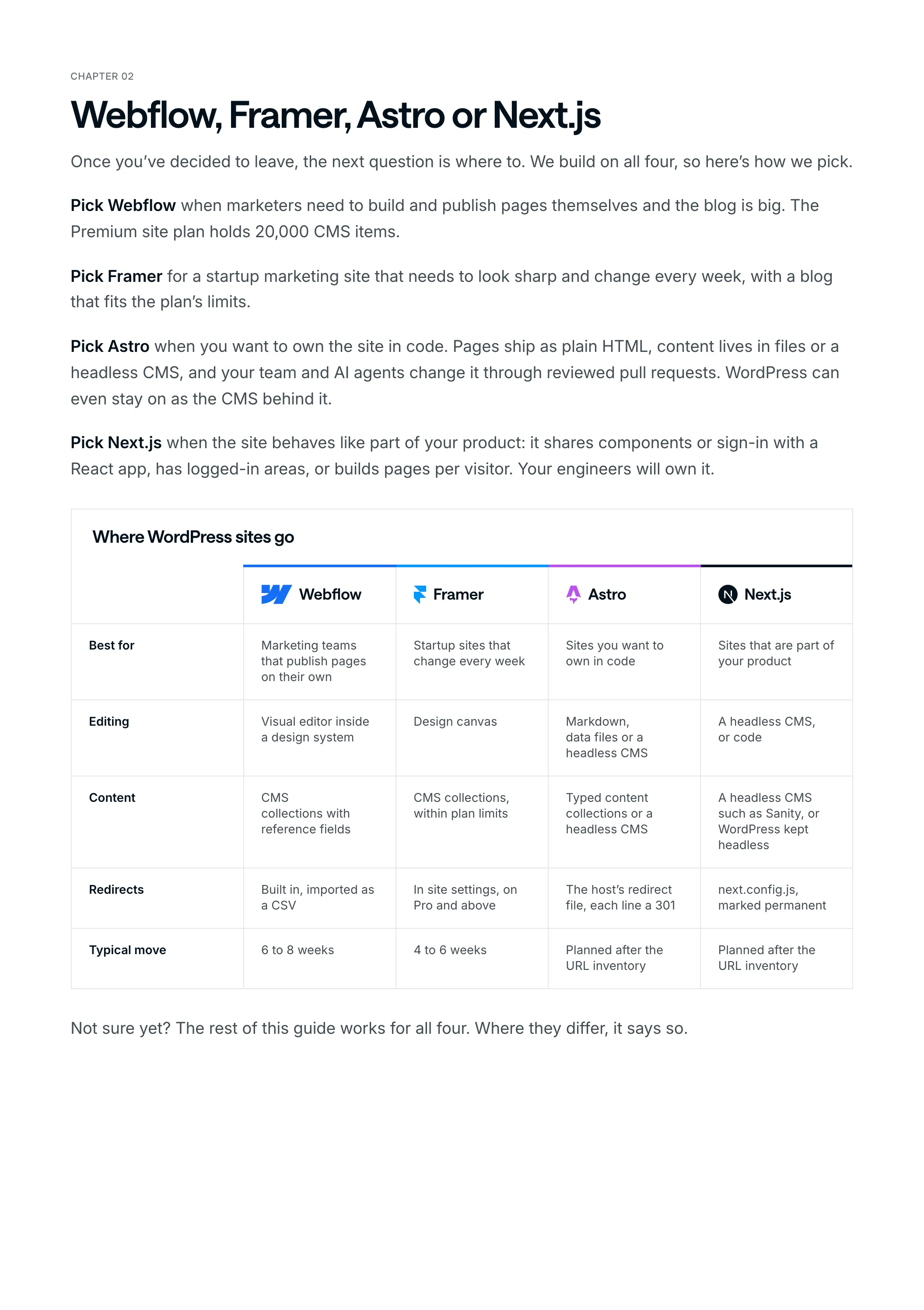
Once you’ve decided to leave, the next question is where to. We build on all four, so here’s how we pick.
Pick Webflow when marketers need to build and publish pages themselves and the blog is big. The Premium site plan holds 20,000 CMS items.
Pick Framer for a startup marketing site that needs to look sharp and change every week, with a blog that fits the plan’s limits.
Pick Astro when you want to own the site in code. Pages ship as plain HTML, content lives in files or a headless CMS, and your team and AI agents change it through reviewed pull requests. WordPress can even stay on as the CMS behind it.
Pick Next.js when the site behaves like part of your product: it shares components or sign-in with a React app, has logged-in areas, or builds pages per visitor. Your engineers will own it.
Where WordPress sites go
| Webflow | Framer | Astro | Next.js | |
|---|---|---|---|---|
| Best for | Marketing teams that publish pages on their own | Startup sites that change every week | Sites you want to own in code | Sites that are part of your product |
| Editing | Visual editor inside a design system | Design canvas | Markdown, data files or a headless CMS | A headless CMS, or code |
| Content | CMS collections with reference fields | CMS collections, within plan limits | Typed content collections or a headless CMS | A headless CMS such as Sanity, or WordPress kept headless |
| Redirects | Built in, imported as a CSV | In site settings, on Pro and above | The host’s redirect file, each line a 301 | next.config.js, marked permanent |
| Typical move | 6 to 8 weeks | 4 to 6 weeks | Planned after the URL inventory | Planned after the URL inventory |
Not sure yet? The rest of this guide works for all four. Where they differ, it says so.
Chapter 03
What moves, and what breaks
WordPress exports content, not design. Tools > Export gives you one XML file with posts, pages, custom post types, comments, custom fields, categories and tags. The theme, the page builder and the plugins don’t come with it.
So the move is a rebuild plus a content move. The writing comes with you. Everything you can see is rebuilt.
| Part of the site | In WordPress | On Webflow or Framer | On Astro |
|---|---|---|---|
| Posts and pages | In the database, exported as one XML file | Cleaned and imported into CMS collections as CSV | Markdown with frontmatter, or entries in a headless CMS |
| Custom post types and fields | Registered by the theme, a plugin or ACF | One collection each, with typed fields | One content collection each, with a schema |
| Categories and tags | Taxonomies with their own archive pages | Linked collections with reference fields | Fields in the content, archive pages built from them |
| SEO titles and descriptions | Set in Yoast or Rank Math | Exported and set per page and per item | Frontmatter fields, sitemap generated |
| Images and files | Linked from the export, not inside it | Imported by URL or re-uploaded | Downloaded and served from your own host |
| Theme and layouts | A theme or a page builder | Rebuilt in the Designer or on the canvas | Rebuilt on a design system with tokens |
| Forms | Contact Form 7, Gravity Forms and the like | Native forms, connected to your CRM | A form service, your CRM or a serverless function |
What breaks quietly
- Shortcodes and page-builder markup. They come out of the export as raw text and builder classes. Clean them out before the import, or they show up on the live page.
- Images still on the old server. The export links to files in wp-content instead of including them. Bring every file across, then search the new site for the old upload paths before launch.
- Trailing slashes and dated URLs. WordPress often ends URLs with a slash and files posts under /2024/05/ style paths. Each pattern needs a rule, or every post quietly changes address.
- Category and tag archives. WordPress makes a page for every category and tag on its own. The ones that rank need a home; thin ones redirect to the closest real page.
- The redirects you already have. Years of them often live in a plugin or the server config. Export them and fold them into the new map, or they stop working at launch.
- Editing. Everyone who lived in wp-admin needs a new place to work, decided before the build (chapter 6).
Chapter 04
Every plugin, one decision
A few years in, most WordPress sites run a dozen plugins. None of them come with you, so each one needs a decision before anything is built.
The plugin directory, October 2026wordpress.org
One decision per plugin
Every active plugin
Built in
Use the platform
Redirects, sitemaps, SEO fields, forms
Replaced
An app or a little code
Analytics, embeds, CRM forms
Gone
Drop it
Caching and page builders
No equivalent anywhere? Raise it before you commit
| Plugin | What it did | After the move |
|---|---|---|
| Yoast or Rank Math | Titles, descriptions, the sitemap | Fields per page and per item. The sitemap is built in on Webflow and Framer, generated on Astro |
| A redirect plugin | Old URLs sent to new ones | Exported and merged into the new redirect map |
| Contact Form 7, Gravity Forms | Forms | Native forms or a form service, connected to your CRM and tested end to end |
| Caching and speed plugins | Keeping pages fast | Nothing. Hosted platforms and static HTML don’t need them |
| A page builder | Layouts | The design system the site is rebuilt on |
| WooCommerce or memberships | A shop, or gated content | A project of its own, and often a reason to stay (chapter 1) |
Do this at the audit. A membership plugin found the week before launch is a problem. Found in week one, it’s a line in the plan.
Chapter 05
The redirect map
The redirect map is where WordPress moves lose rankings, so start there, before anyone designs anything.
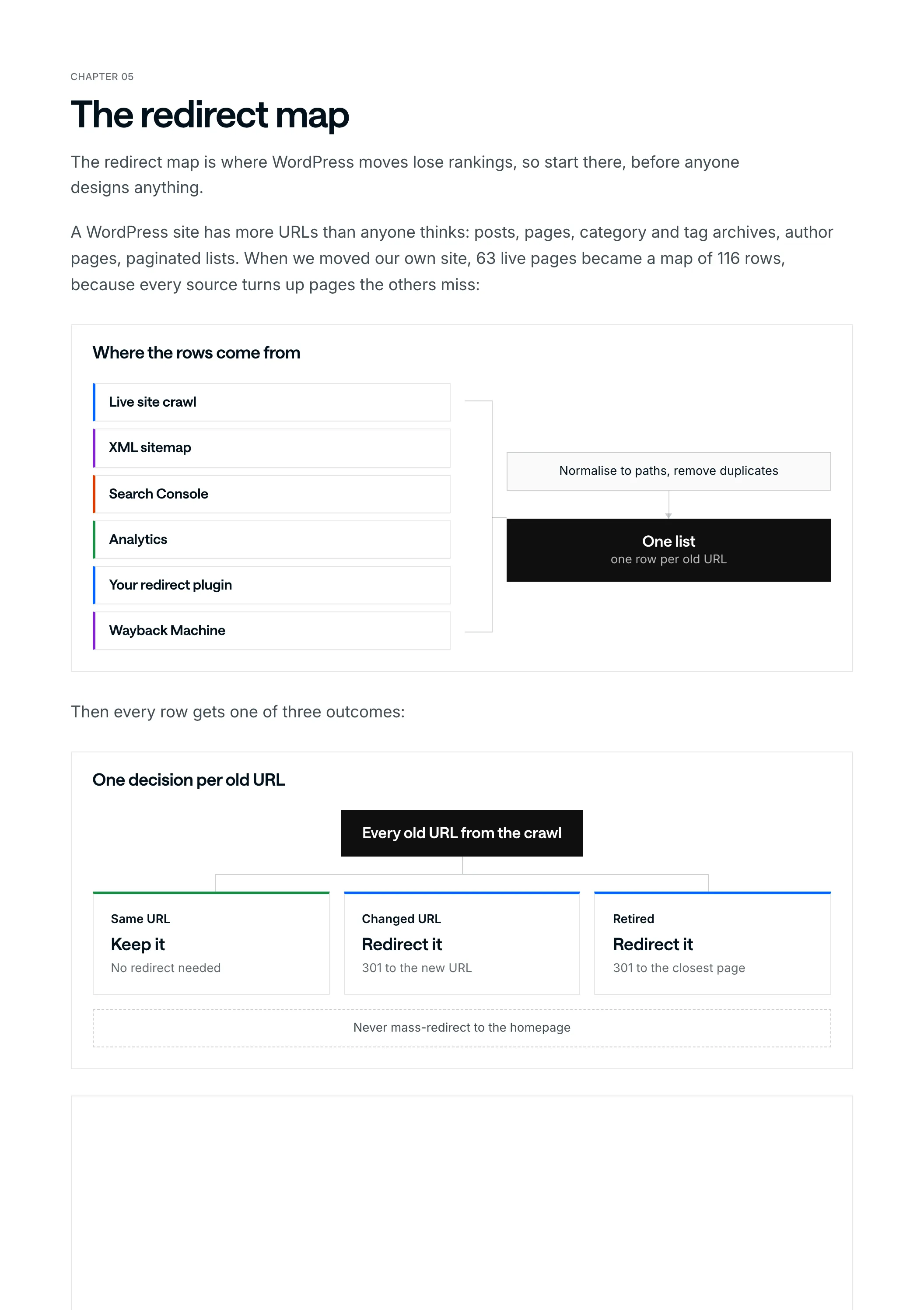
A WordPress site has more URLs than anyone thinks: posts, pages, category and tag archives, author pages, paginated lists. When we moved our own site, 63 live pages became a map of 116 rows, because every source turns up pages the others miss:
Where the rows come from
- Live site crawl
- XML sitemap
- Search Console
- Analytics
- Your redirect plugin
- Wayback Machine
Normalise to paths, remove duplicates
One listone row per old URL
Then every row gets one of three outcomes:
One decision per old URL
Every old URL from the crawl
Same URL
Keep it
No redirect needed
Changed URL
Redirect it
301 to the new URL
Retired
Redirect it
301 to the closest page
Never mass-redirect to the homepage
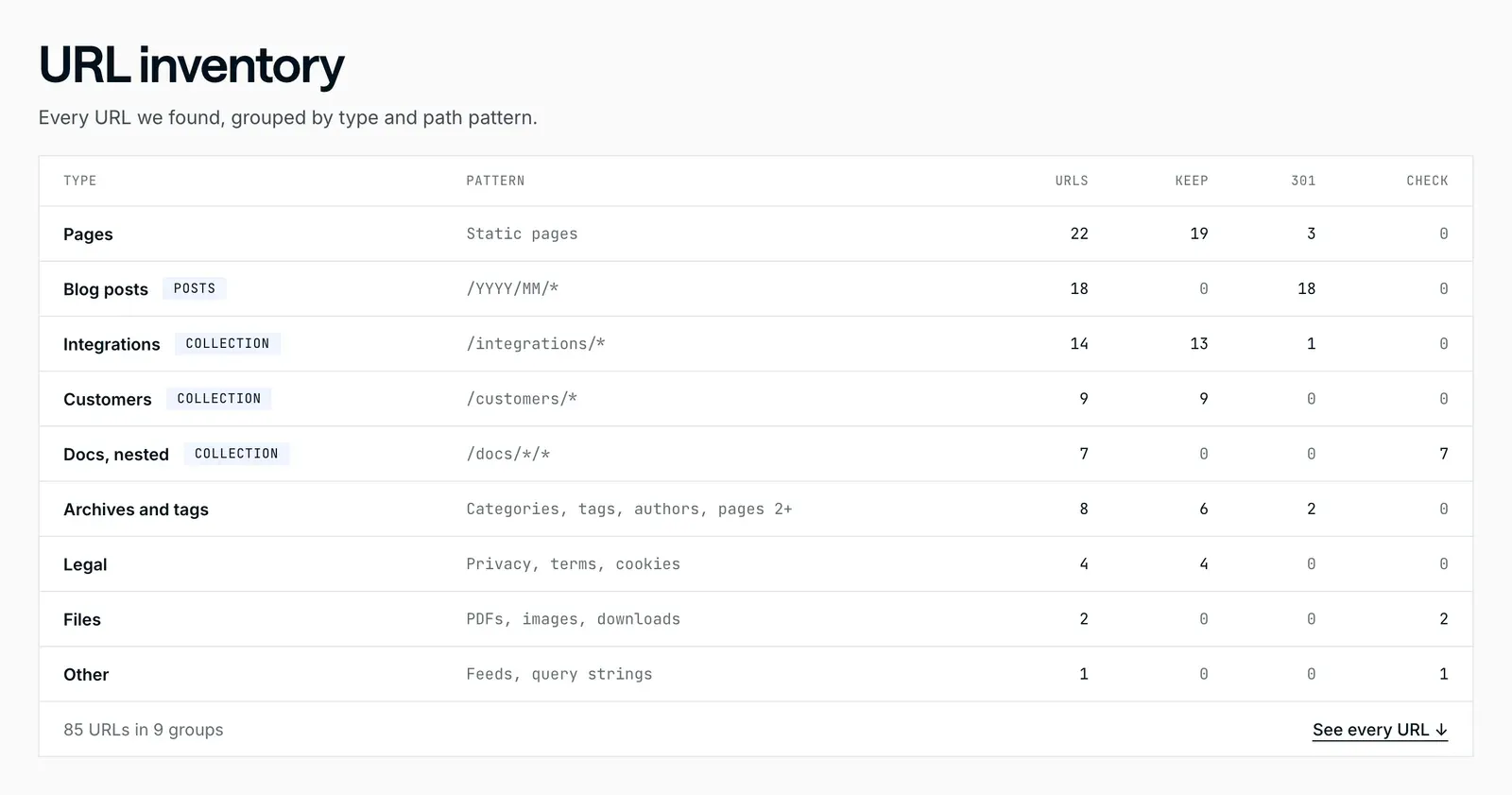
URL inventoryMigration planner
The patterns WordPress needs
- Dated posts. /2024/05/post-name/ style paths get a pattern rule instead of a row per post.
- Trailing slashes. Match the old rule on the new site, or add a rule for each pattern.
- Specific rules before wildcards. Webflow runs redirects oldest first, so a broad pattern added early catches URLs meant for a specific rule.
- Blog paths. Framer’s CMS pages sit under a collection path, so posts at the root usually move to /blog/ and need a wildcard rule.
- Archives that rank. Keep them as collection pages, and send thin ones to the closest real page.
- The redirects you already have. Point each one straight at its final page, so nothing redirects twice.
What the file looks like
On Webflow you import the map as a CSV in the site settings, and on Framer you add it in the site settings. On an Astro site on Cloudflare Pages, where designme.agency runs, it’s a plain text file called _redirects: old path, new path, status code, one row per line. An example for a blog with dated posts:
# old path             new path        status
/2023/:month/:slug     /blog/:slug     301
/2024/:month/:slug     /blog/:slug     301
/category/news         /blog           301
/about-us              /about          301
One line per year covers every dated post: :month and :slug each stand for one part of the path. Write the 301. Leave it off and Cloudflare Pages sends a 302, which tells Google the move is temporary.
On Next.js the same rows go in next.config.js, each with permanent: true, which sends a 308 that Google treats like a 301.
Keep the map itself in a spreadsheet (old URL, new URL, outcome) and generate the file from it, or import it on Webflow. Nobody should edit the live file by hand.
Chapter 06
Getting the content out
The writing is the part you keep, so move it carefully.
From WordPress to the new CMS
Export
Tools > Export, all content: one XML file with posts, pages, custom post types, comments, custom fields and taxonomies.
Map the model
Every post type and field gets a home before anything is imported: a collection, a field, or nothing.
Clean it
Shortcodes, inline styles, page-builder markup and dead embeds come out.
Bring the media
The export links to images instead of including them. Pull every file across from wp-content.
Import, then check
CSV into Webflow or Framer, Markdown or a headless CMS for Astro. Then open items and images by hand.
| In WordPress | On Webflow or Framer | On Astro |
|---|---|---|
| Posts | A blog posts collection | Markdown files in a content collection |
| Custom post types | One collection each | One content collection each |
| Categories and tags | Linked collections with reference fields | Fields, with archive pages built from them |
| ACF and custom fields | Typed collection fields | Frontmatter fields, checked by a schema |
| Pages | Static pages built from the design system | Pages built from shared components |
| Yoast or Rank Math fields | SEO title and description per page and item | Title and description fields |
Who edits the site after launch
Decide this before the build, because it changes the build. On Webflow and Framer, marketers keep a visual editor. On Astro you choose: Markdown files changed through reviewed pull requests (by your team or an AI agent), a form-based editor like Keystatic on top of the files, or a headless CMS such as Sanity.
Or keep wp-admin. WordPress can stay on as the headless CMS while Astro serves the site, so your editors change nothing about how they write.
Chapter 07
The build, in order
This is the order we use for clients, and the one we used on our own site.
From inventory to staging
- Before any design
Inventory every URL
Crawl every URL, export top pages, rankings and backlinks, and record each page’s title, description and headings.
- Before any design
Map URLs and content
Every URL’s fate decided, and every post type and field given a home, before anything is designed.
- Build
Design system first
Type, color and spacing as variables or tokens, then shared components. Templates and collection pages are built from those.
- Build
Copy and SEO stay put
Every page that ranks keeps its words, title and description, even if the design changes in the same move.
- Before launch
SEO on every page
Titles, descriptions, alt text, canonicals and structured data, plus a sitemap with only indexable pages.
- Before launch
Staging, side by side
The full site on a private address, every form, link and redirect tested, compared with WordPress page by page.
WordPress stays live the whole time. Nothing changes for your visitors until launch day.
Keeping the copy and SEO the same is the rule people want to skip. Don’t. If traffic moves after launch, you’ll know it wasn’t the words.
Chapter 08
Launch week, and after
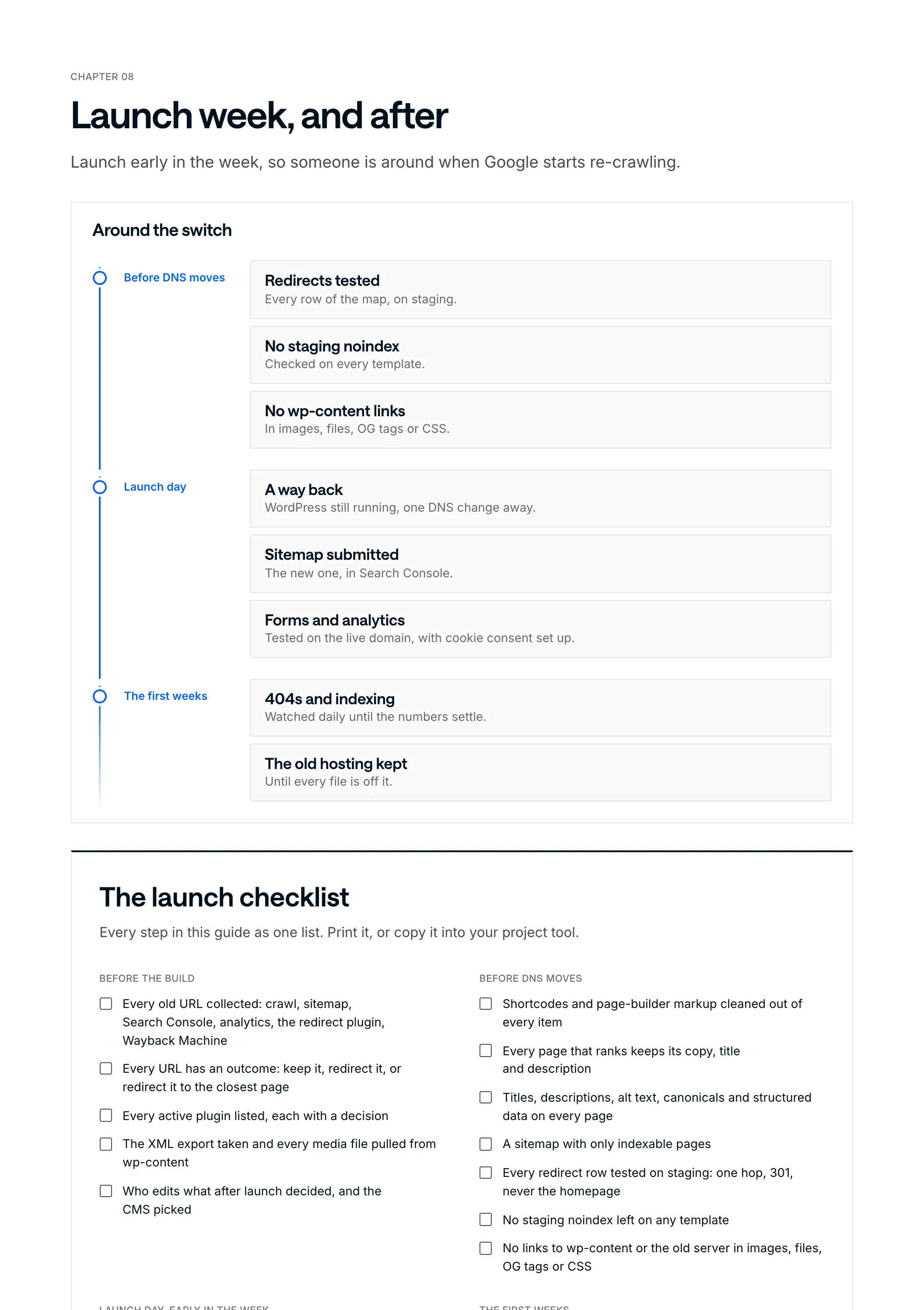
Launch early in the week, so someone is around when Google starts re-crawling.
Around the switch
Before DNS moves
Redirects tested
Every row of the map, on staging.
No staging noindex
Checked on every template.
No wp-content links
In images, files, OG tags or CSS.
Launch day
A way back
WordPress still running, one DNS change away.
Sitemap submitted
The new one, in Search Console.
Forms and analytics
Tested on the live domain, with cookie consent set up.
The first weeks
404s and indexing
Watched daily until the numbers settle.
The old hosting kept
Until every file is off it.
The launch checklist
Every step in this guide as one list. Print it, or copy it into your project tool.
Before the build
- Every old URL collected: crawl, sitemap, Search Console, analytics, the redirect plugin, Wayback Machine
- Every URL has an outcome: keep it, redirect it, or redirect it to the closest page
- Every active plugin listed, each with a decision
- The XML export taken and every media file pulled from wp-content
- Who edits what after launch decided, and the CMS picked
Before DNS moves
- Shortcodes and page-builder markup cleaned out of every item
- Every page that ranks keeps its copy, title and description
- Titles, descriptions, alt text, canonicals and structured data on every page
- A sitemap with only indexable pages
- Every redirect row tested on staging: one hop, 301, never the homepage
- No staging noindex left on any template
- No links to wp-content or the old server in images, files, OG tags or CSS
Launch day, early in the week
- A way back ready: WordPress still running, one DNS change away
- The new sitemap submitted in Search Console
- Forms and analytics tested on the live domain, cookie consent set up
The first weeks
- 404s and indexing checked daily until the numbers settle
- New 404s added to the redirect map
- The old hosting kept until every file is off it
- Redirects kept for at least a year
Chapter 09
Timeline and price
It depends on where you’re going and how much content comes with you. For a typical marketing site with a blog, this is what we plan:
- 6 to 8 weeks
- WordPress to Webflow, for a typical SaaS marketing site
- 4 to 6 weeks
- WordPress to Framer, for a typical startup marketing site
- $10,000
- the starting fixed price for a landing page sized site
- $15,000
- the starting fixed price for a full site or a headless CMS build
Hundreds of posts, complex plugins or gated content add time. A move to Astro or Next.js is planned after the URL inventory, because it depends most on how your team wants to edit.
You get the scope and the price on a call, before anything starts, and the platform you pick doesn’t change it.
Running costs usually drop. No plugins to license or patch, hosting and security included on Webflow and Framer, and little or nothing to host for a mostly static Astro site. A CMS like Sanity has its own plans, so price it for your team.
Want a number for your site? Book a 30-minute call and bring your URL. You’ll leave knowing where it should go, roughly how long it takes and what it costs. And if the honest answer is “stay on WordPress”, I’ll tell you that too.